Version 4

Take a ROM apart. Put it back together.

crb Android Kitchen unpacks a firmware package into files you can actually edit, rebuilds each partition in the filesystem you choose, and packs the result back into something a phone will accept. Every screen tells you what it is about to write, what the device can take, and what it will cost you if the two do not match.

Windows 10 and 11, x64 or ARM64, and 64-bit Linux. No WSL, no virtual machine.
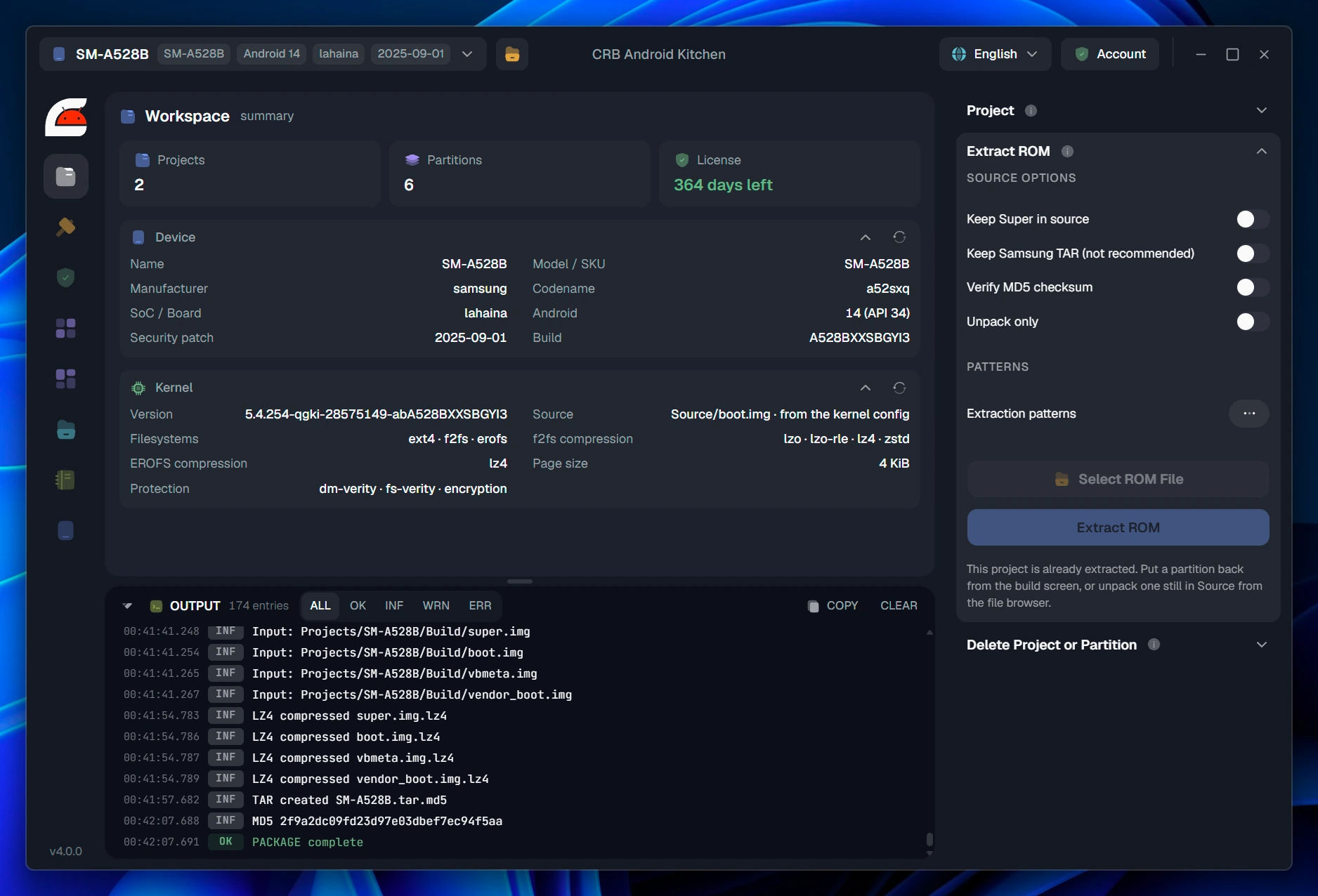
The crb workspace for a Galaxy A52s project, showing the device identity read from the ROM and what the kernel supports.
3 filesystemsext4, f2fs and EROFS, read and written
30+ formatsrecognised by signature, not by extension
26 languagesthe whole interface, not just the menus
0 dependenciesone package, nothing else to set up
The round trip

A project is a folder with a fixed shape

Every ROM you open becomes a project, and the project keeps the firmware as it shipped separate from what you changed and from what you built. That separation is the whole safety model: what you are about to flash is never confused with what came out of the box.

01

Extract

The package is unpacked into per partition trees, with the stock images kept aside.

02

Edit

Files, apps, framework, boot images, mount table, device tree, verified boot flags.

03

Build

Each partition is written back as ext4, f2fs or EROFS, then read back and checked.

04

Compare

Stock against built, path by path, down to the methods inside a jar.

05

Pack and write

Odin archive, OTA payload, sparse images, or straight to the phone over USB.

Source stays untouched

The stock images live in their own folder and are never written to. Every panel that can undo something puts the partition back from there, byte for byte.

Metadata is a first class citizen

Ownership, mode, capabilities and the SELinux label of every path are recorded on extraction and written back on build. They are visible per file, not hidden in a config nobody reads.

Nothing leaves your machine

Extraction, building, patching and comparing all run locally. The only thing that talks to the network is the licence check and the update notice.


Files and images

The ROM is a file tree, and the tree knows what it is

Android files carry more than their bytes. A file has an owner, a mode, capabilities and a security context, and getting any of them wrong is the difference between a phone that boots and one that does not. crb reads them out of the image on extraction, shows them per item, and writes them back on build.

Every path, with what will be written

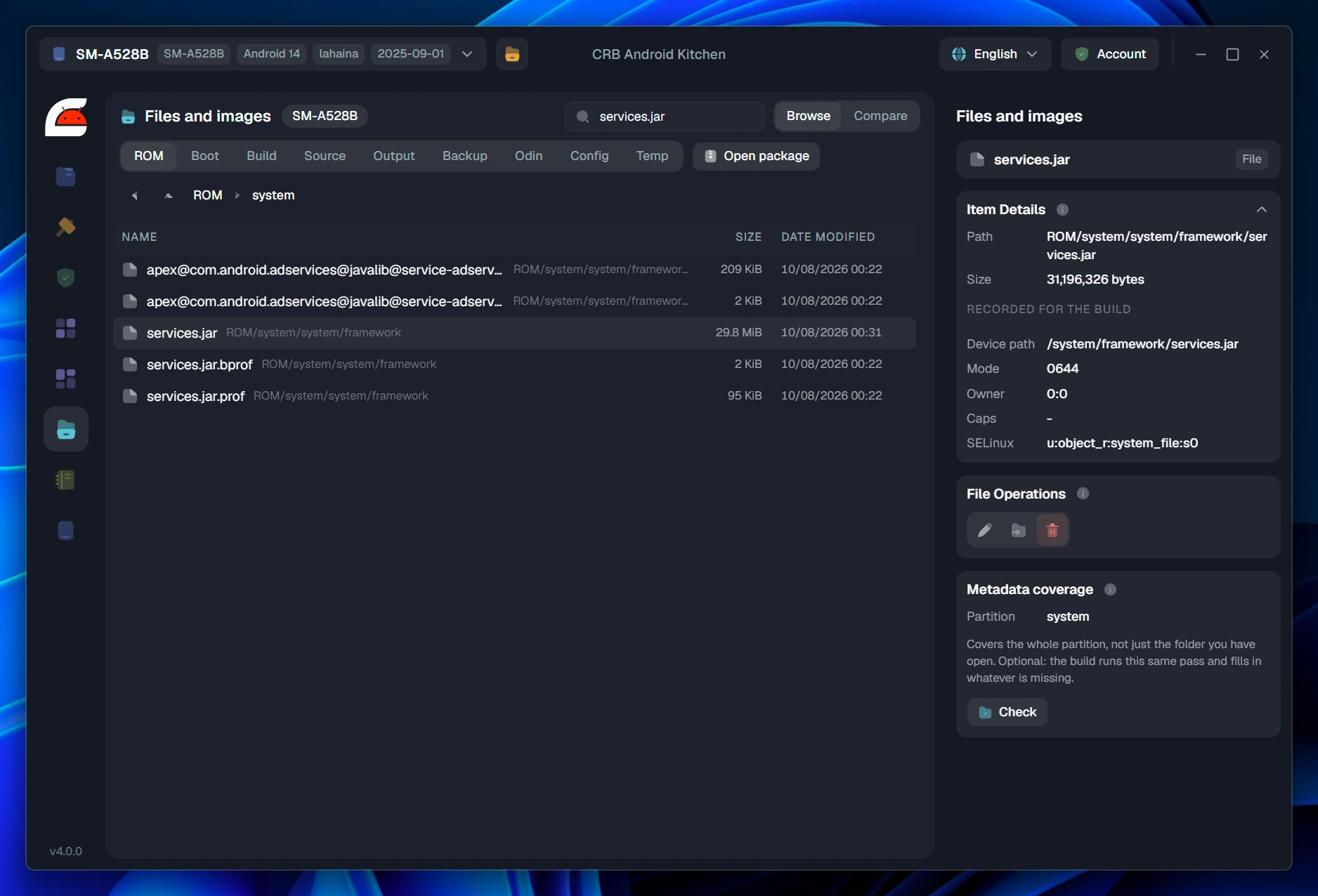
Select a file and the inspector shows both sides of it: where it sits in the project, and the line that will end up in the image. Device path, mode, owner, capabilities, SELinux label. Symlinks are shown with their target and with whether that target actually resolves inside the tree.
  • A file you add is labelled for you: crb resolves the SELinux context of every new path from the ROM's own rules, and where those do not reach, from the nearest labelled parent, which is exactly what restorecon would give it. Owner and mode follow the same convention Android builds with: root and 0644, the shell group and 0755 under a bin directory.
  • Metadata coverage checks the whole partition for paths with no ownership line or no SELinux rule. If one would still go in unlabelled, the build does not start: it stops and names the path, because an unlabelled file reaches the phone as a denial rather than as an error.
  • The rules are files, not a black box: the ownership and context tables live in the project as plain text you can read and edit, and the compiled file_contexts.bin that ships in the firmware is decompiled back into its rules on extraction. What the build is going to apply is legible before it applies it.
  • Browse inside an image without unpacking it: open super.img or any filesystem image read only, and extract just the files you want.
  • Open a package and walk a firmware archive level by level: a zip holding an Odin tar holding a compressed image. Nothing is written until you ask for it.
  • Search across the tree, filter a folder, rename, reveal, delete, or import a loose image into the project.
The file browser with services.jar selected and its recorded build metadata: device path, mode 0644, owner 0:0, SELinux label.
Recorded for the build. The panel does not describe the file on your disk, it describes the entry the image will carry.

Compare

Prove what changed, instead of hoping

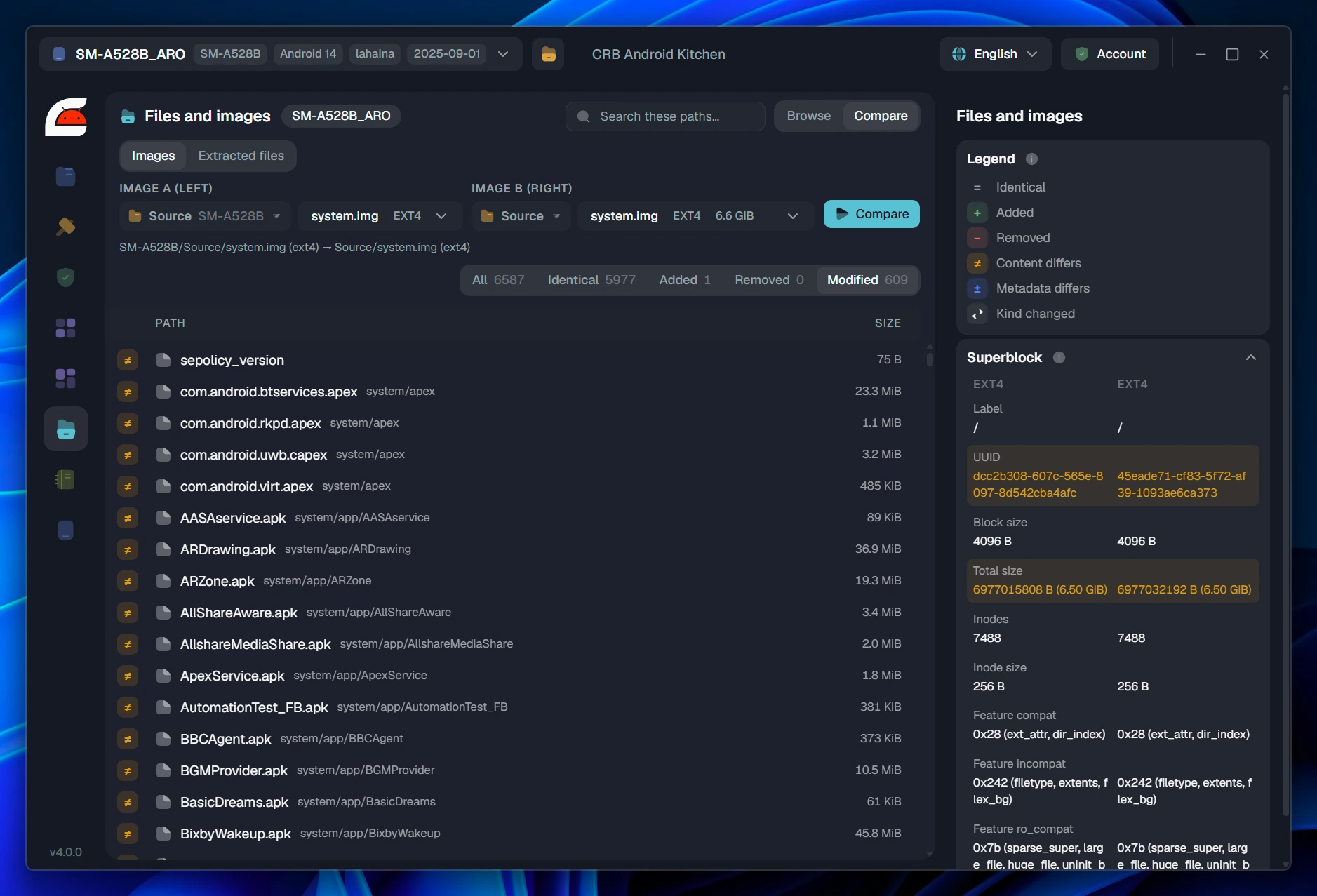
crb walks two trees by path and marks every row: identical, added, removed, content differs, metadata differs, or the kind of the path changed. It compares filesystem images, and it compares the extracted folders of two projects, which is the same question asked before the build instead of after it. Each side is picked by project and folder, so the two do not have to belong to the same project: stock against built, one firmware release against the next, or the same partition from two different phones. Filesystems do not have to match either, so the stock ext4 image and the EROFS one you just built are directly comparable.

Every screenshot on this page is from a real project. Click one to see it full size.
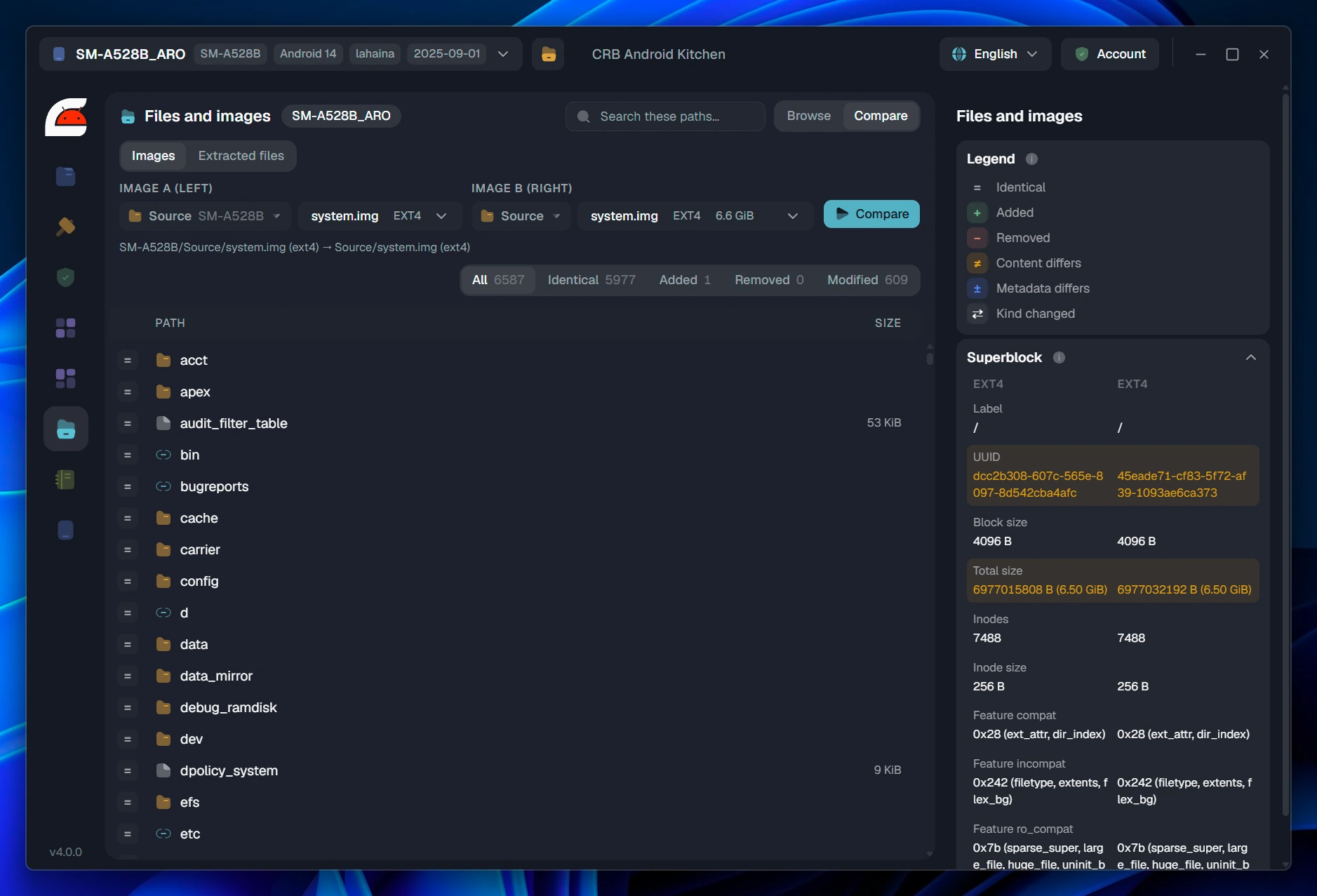
Two releases of the same Galaxy A52s firmware compared: 6587 paths, 5977 identical, 1 added, 609 modified, with both superblocks side by side.
Step 1. The system image of one Galaxy A52s firmware against the same image from a newer release of it. 6587 paths compared, 5977 identical, 1 added, 609 modified. Both superblocks sit beside the list with every field that differs highlighted: same block size, same inode count, a different UUID and 16 KiB of difference in total size.
The modified filter listing the 609 files that changed between the two releases: sepolicy_version, apex packages and system apps.
Step 2. Filter to what moved and you are reading the vendor's changelog for yourself: the SELinux policy version, four apex packages, then app after app. No release notes needed.
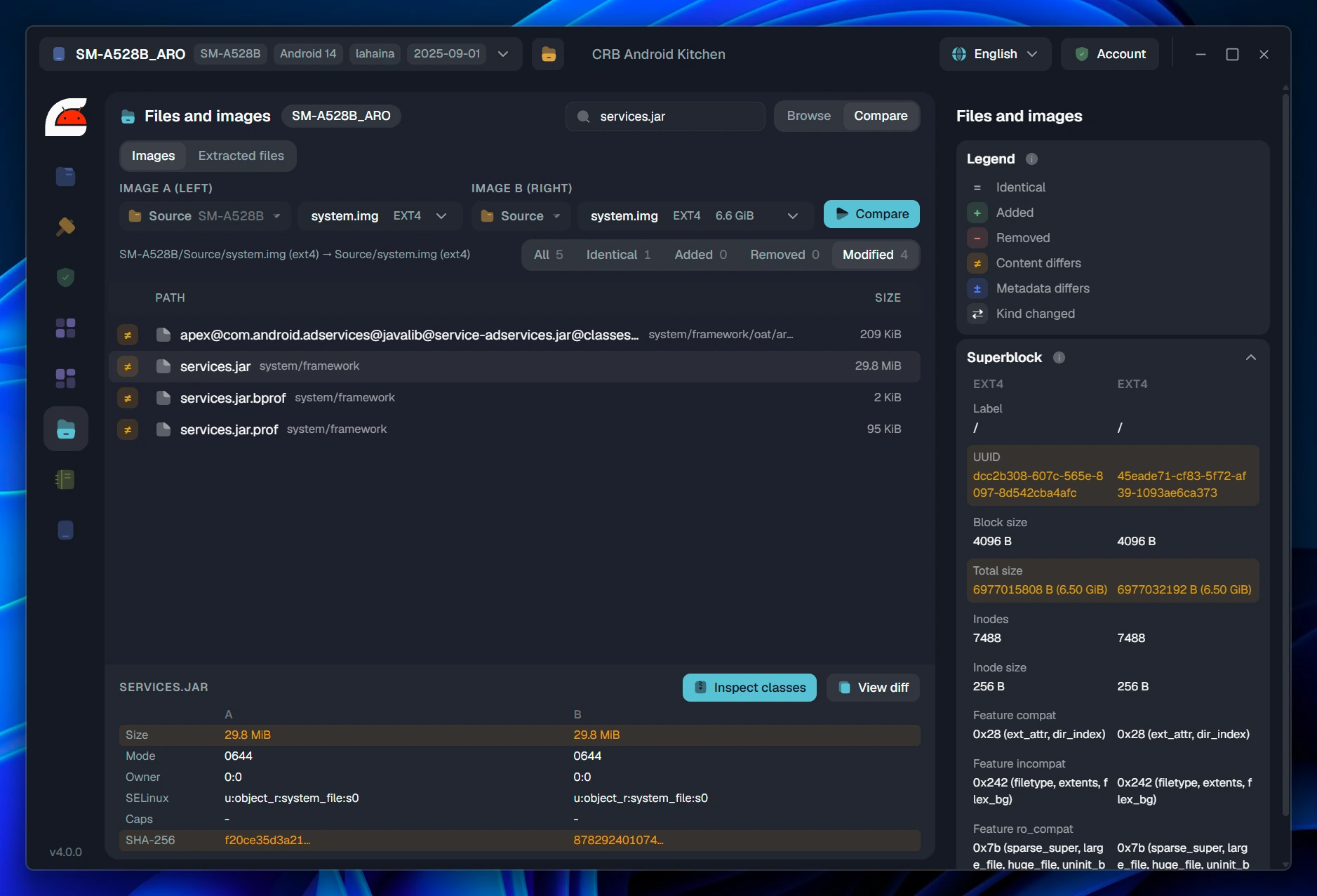
services.jar side by side: size, mode, owner, SELinux label, capabilities and SHA-256 for each of the two images.
Step 3. Any row opens into both sides of the file. Here mode, owner, label and capabilities are identical, and the size and the SHA-256 are not, which is the shape of an ordinary content change.
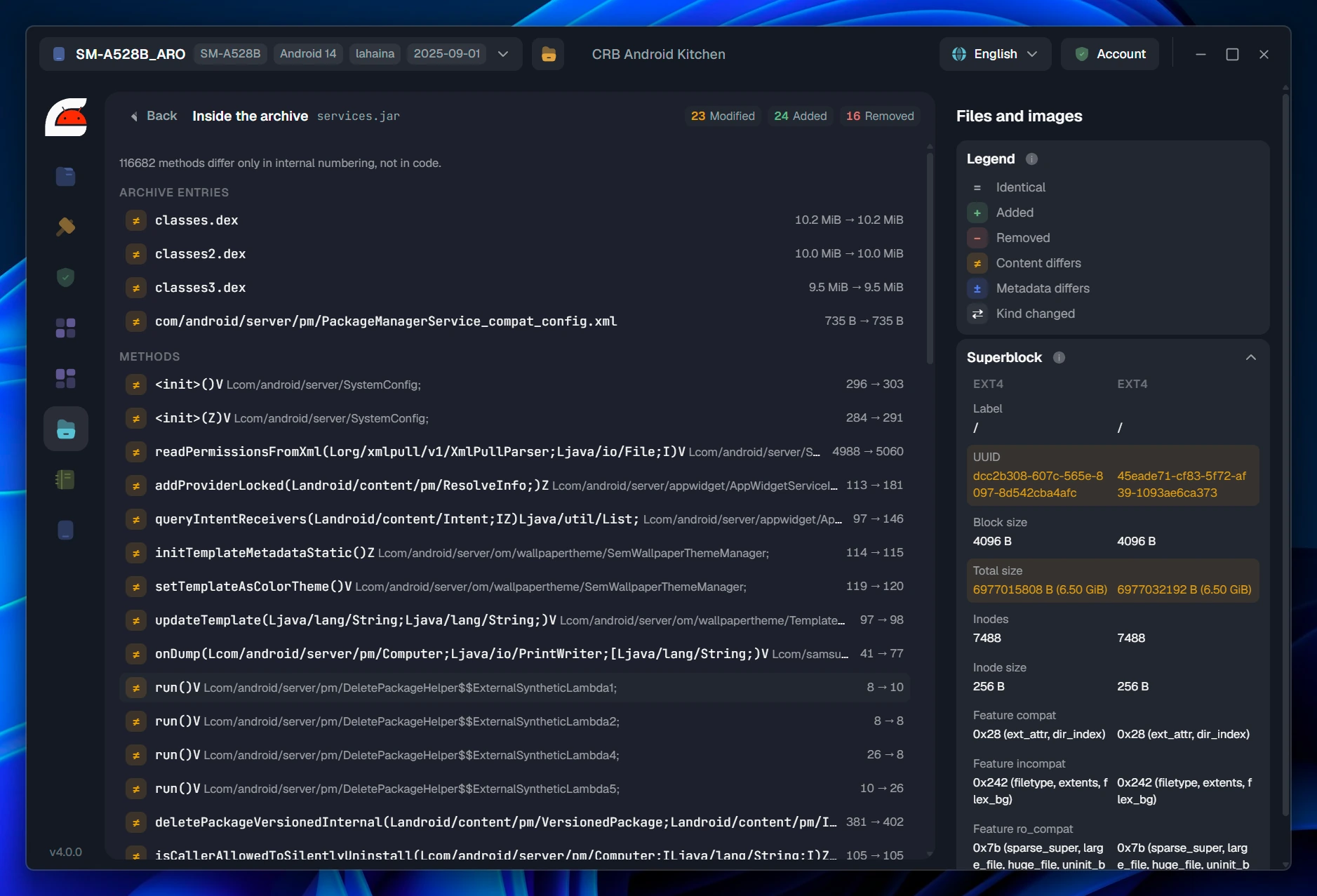
Inside services.jar: three dex files, and the modified methods listed by full signature with their instruction counts before and after.
Step 4. Inside the jar. Which dex files changed, then 23 methods modified, 24 added and 16 removed, each by full signature with the instruction count on both sides. The line above the list is the part that makes it usable: 116682 methods differ only in internal numbering, not in code. Recompiling a framework renumbers almost everything in it, and a diff that cannot tell renumbering from a real change is a diff nobody reads twice.
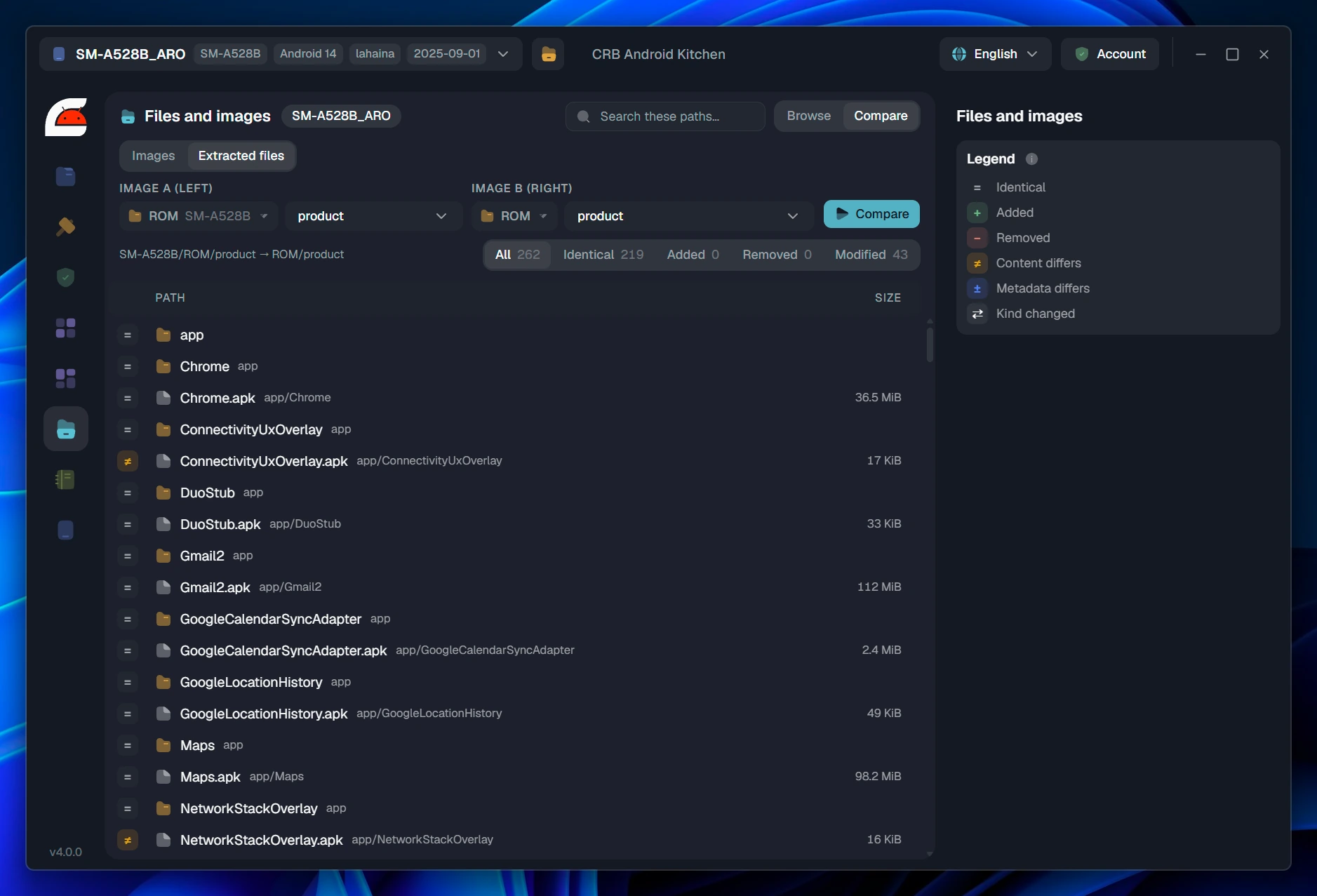
The same comparison run on extracted folders instead of images: product from one project against product from another, 262 paths and 43 modified.
The same thing, on folders. product as extracted in one project against product in another: 262 paths, 219 identical, 43 modified. Nothing has to be built first, and the superblock panel simply goes away, because a folder does not have one.

Compare is how you answer the question that actually matters

Not "did the build succeed", but "is the image I am about to flash different from the stock one in exactly the ways I intended, and in no others". Text files get a line diff. Archives get their entry list. Jars and APKs get their methods. And the same tool pointed at two releases instead of at your own work is the fastest way to find what an OEM changed between two builds.


Build

Change the filesystem, and the app checks the rest

Any partition can be rebuilt in a filesystem it did not ship with. That is a genuinely useful thing to do, and it is also a good way to produce an image the phone cannot mount. crb makes the change one click, and then it tells you everything that has to follow from it.

The mount table has to agree

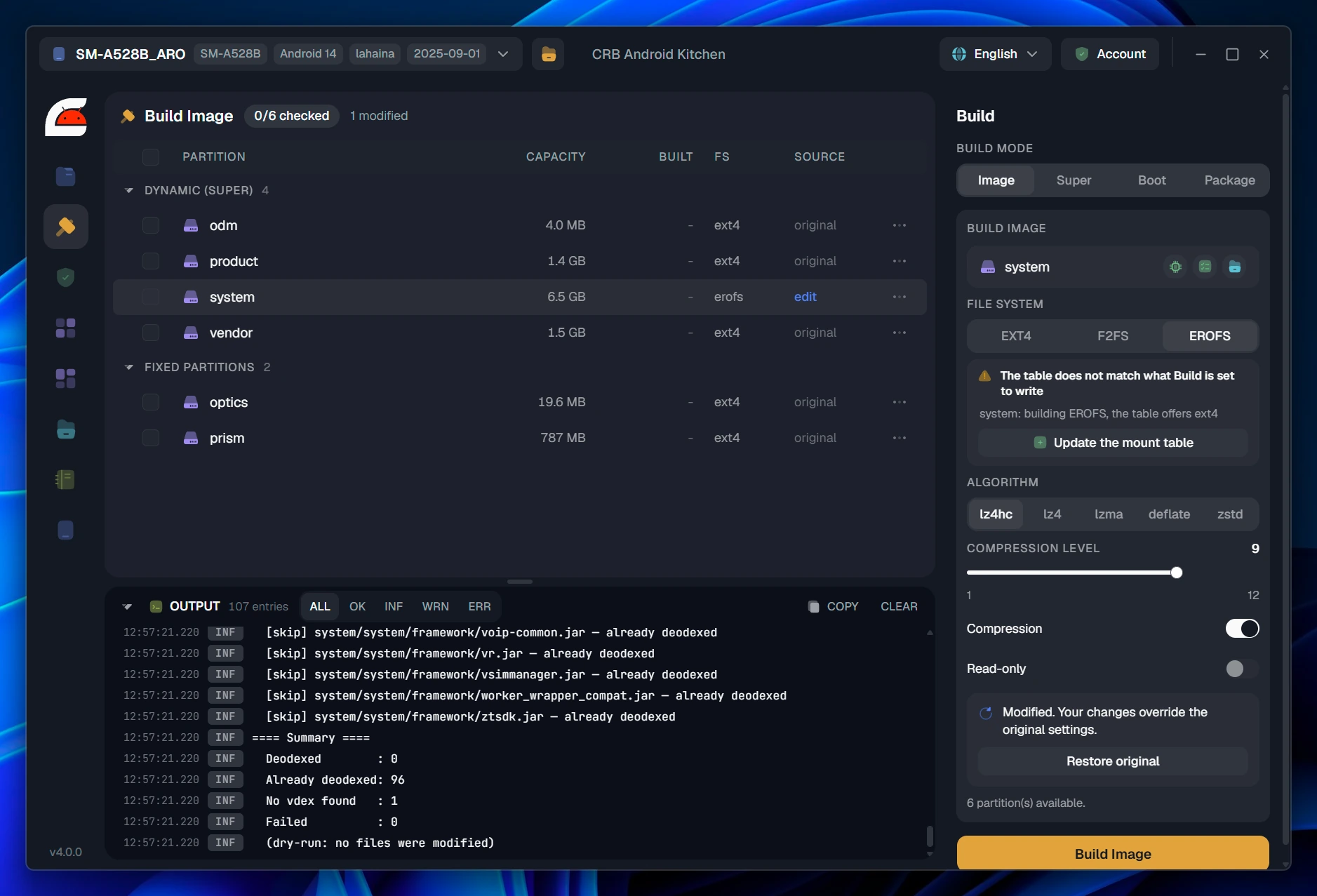
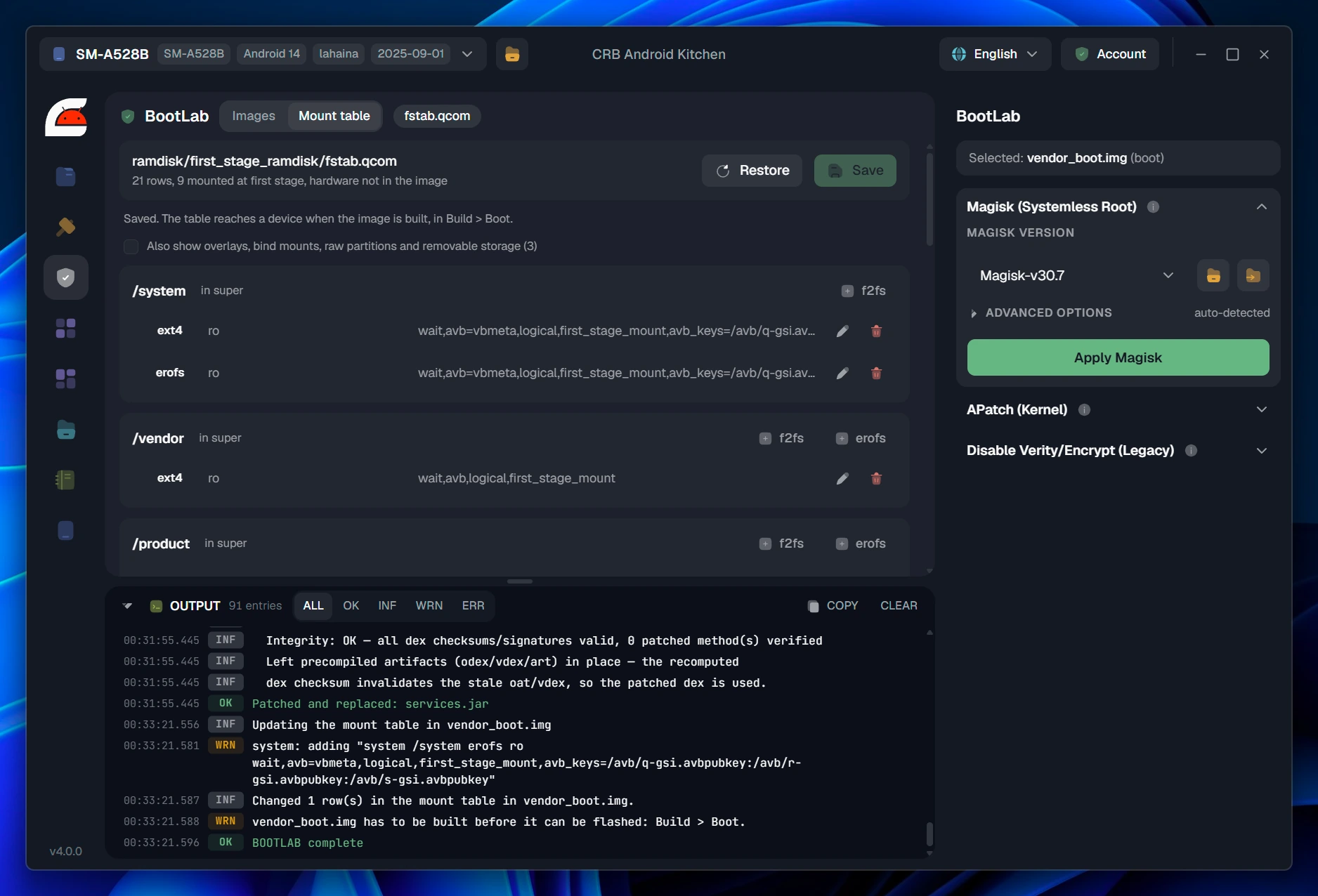
Switch /system from ext4 to EROFS and the panel immediately says what is wrong: the table in the ramdisk offers ext4 and the build is set to write EROFS, so first stage mount would fail. One button adds the missing row, puts it on the correct side of read only, writes it into the mount table inside vendor_boot.img, and reminds you that the boot image itself now has to be rebuilt for the change to reach the device.
  • What the kernel can mount is read from the kernel configuration inside the boot image. If this device has no EROFS support, or cannot decompress the algorithm you picked, you are told before the build, not after the bootloop.
  • Algorithms and levels per filesystem: EROFS with lz4hc, lz4, lzma, deflate or zstd and a level from 1 to 12; f2fs with LZ4 or LZO, and compression that can be turned off entirely.
  • Auto Size runs a measuring pass first, so the image is fitted to the exact space its contents need, accounting for read only mode and compression.
  • Read only, sparse output and partition size are preselected from the original image, and every override is marked, with one button to put the partition back the way it was extracted.
The build panel after switching system to EROFS: a warning that the mount table offers ext4, with an Update the mount table button, the algorithm list and the compression level slider.
The warning arrives with the fix attached. Switching filesystem is one click, and so is making the ramdisk agree with it.

Built, then read back and checked

A build is not finished when the last byte is written. crb reopens the image it just produced, reads its superblock, walks its directories, and reports what it found: size, label, UUID, mode, feature flags, how much of the image is actually used, and how long the check took.

The log is not decoration. It records the compression saving, the file and directory counts against the source tree, the space used for data and metadata, and what the filesystem reports as mounted. If a build is wrong, the log is where it shows.
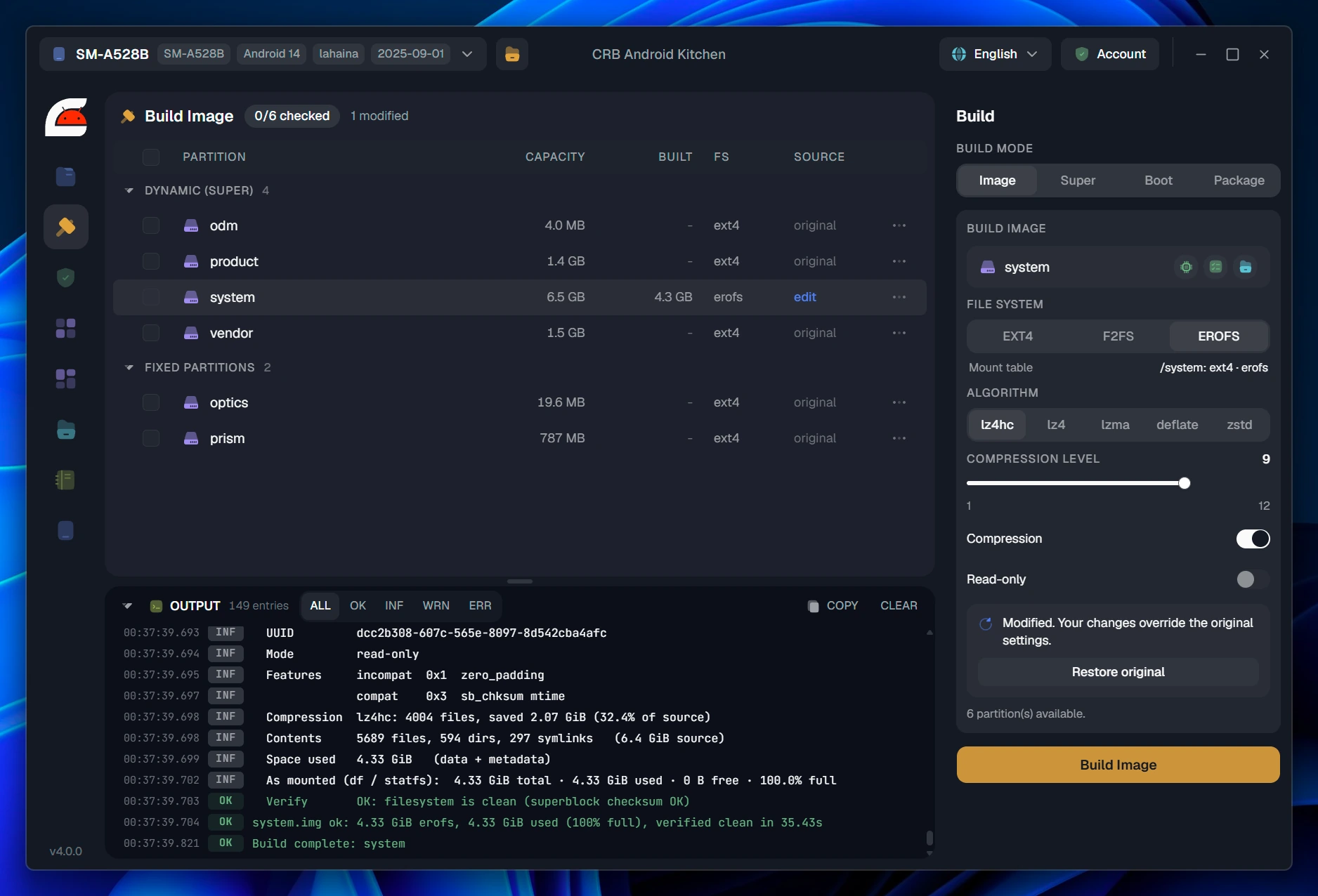
  • A 6.50 GiB ext4 system rebuilt as EROFS with lz4hc came out at 4.33 GiB, verified clean, in 35 seconds.
  • Batch build any number of partitions, or rebuild a single one and leave the rest as they shipped.
  • Re-extract from Source throws away a partition tree and unpacks it again, settings included, when an edit went wrong.
The build log after an EROFS system build: UUID, mode, features, compression saving, contents, space used, and the verify line reporting a clean filesystem.
Every number in that log came out of the finished image, not out of the settings that produced it.

super is assembled with the budget in view

Dynamic partitions are laid back into a single super.img using the layout the firmware itself declares. The group total, what your images use and what is left are shown before you start, so an overflow is something you see rather than something the builder discovers at the end.
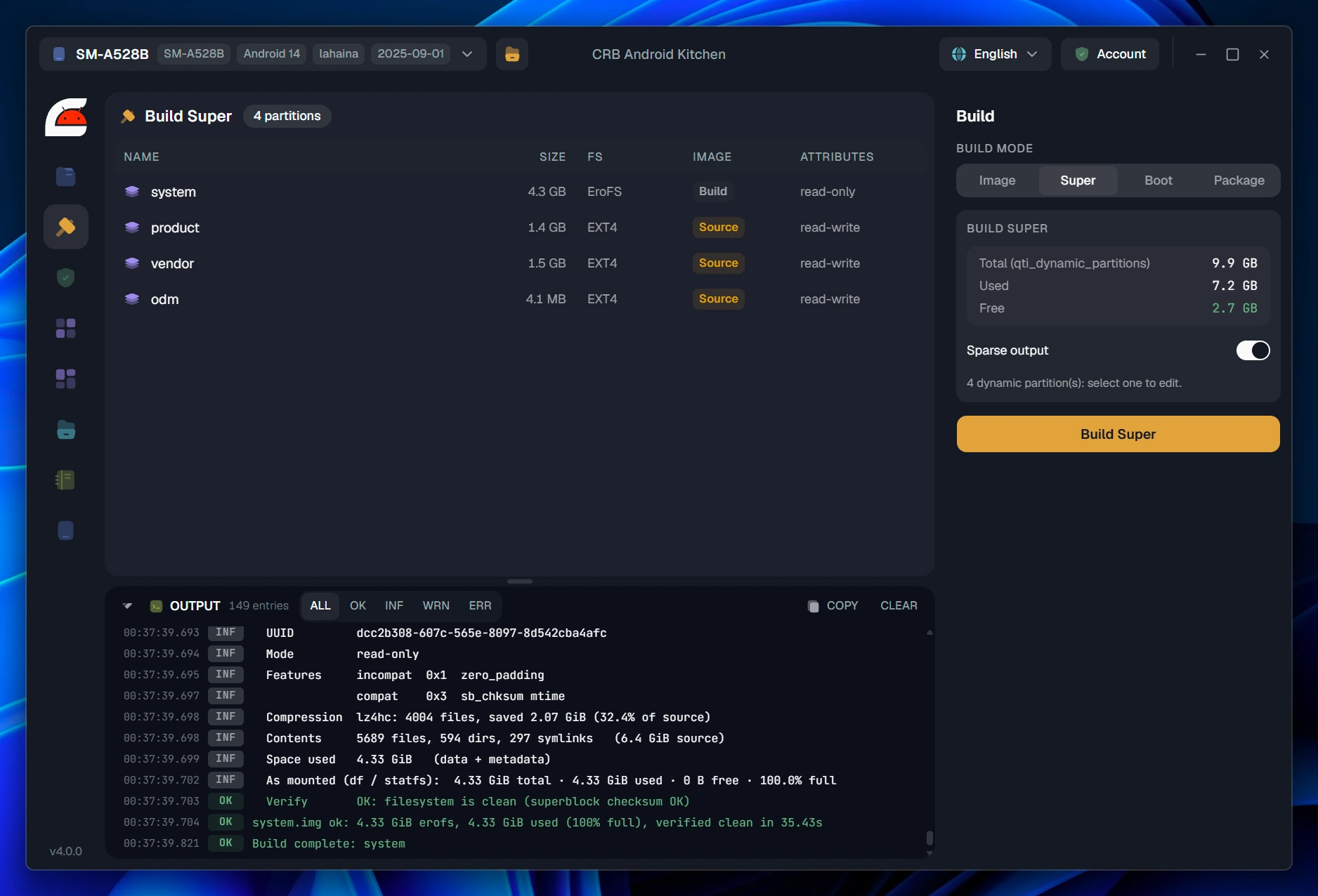
  • Raw or Android sparse output, preselected from what the original image was.
  • Partitions you did not rebuild are taken from Source automatically, and the panel says so per row.
  • Read only and read write attributes are reconciled against the declared layout, and any correction is written into the log.
The super builder listing four dynamic partitions with their filesystem and source, and the group budget: 9.9 GB total, 7.2 GB used, 2.7 GB free.
9.9 GB of group, 7.2 GB used, 2.7 GB free. The numbers come from the device layout, not from a guess.

BootLab

A boot image becomes files, and files are editable

Opening a boot image turns it into a working area inside the project: the ramdisk as a directory, the kernel as a file, the device tree as JSON. Everything you do to it is a change to those files, and the image is written once at the end, with everything else that changed.
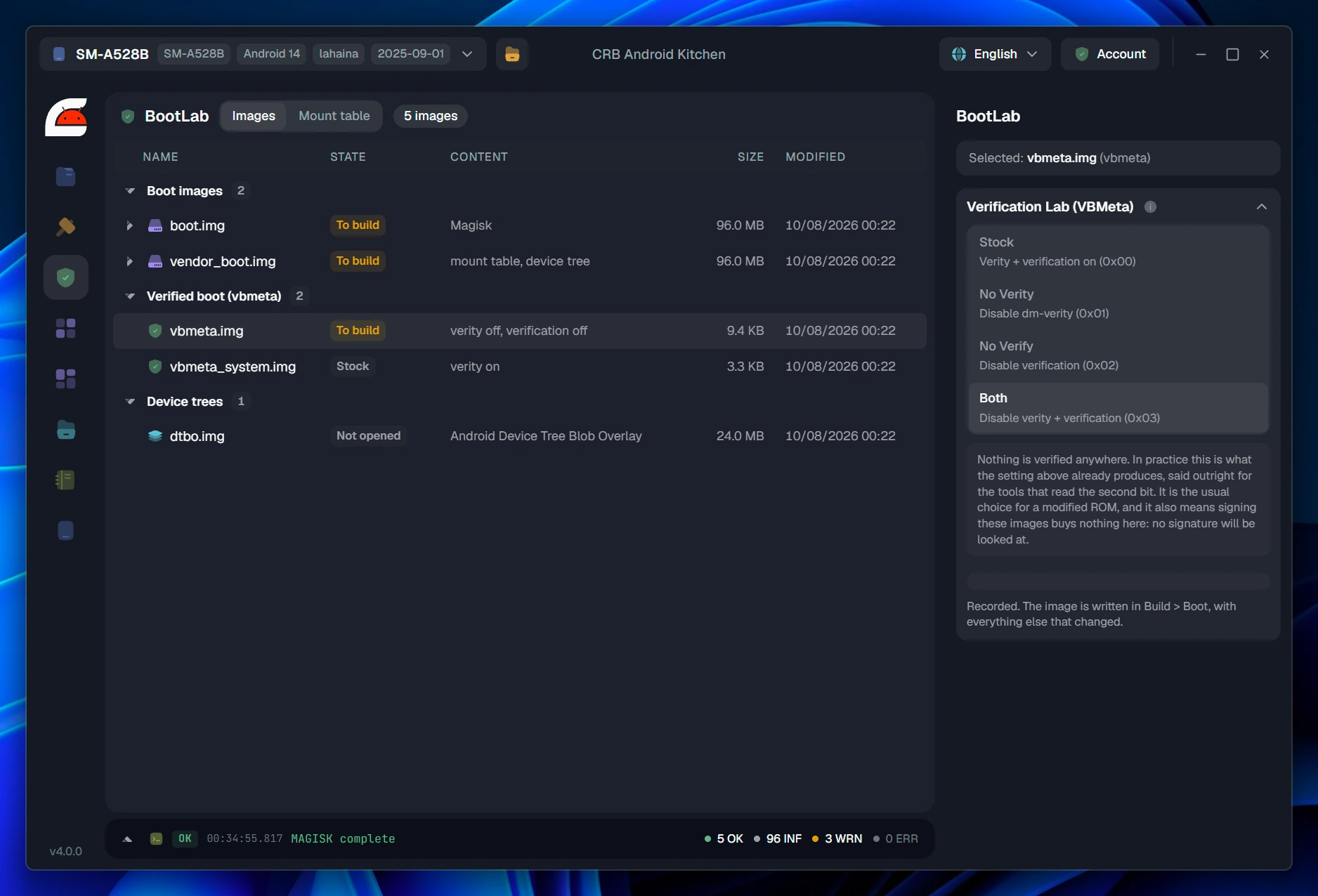
The verified boot panel with four AVB flag choices and a paragraph explaining what the selected one does to the device.
Verified boot, in words. Four choices, and for each one a paragraph on what the phone will actually check, what it will stop checking, and whether a locked bootloader will still accept it.
The mount table editor showing /system with an ext4 row and an EROFS row, both read only, with their mount options and fs_mgr flags.
The mount table as rows, not as a text file. Per mount point, per filesystem, with the verity and forced encryption flags called out and removable one at a time.
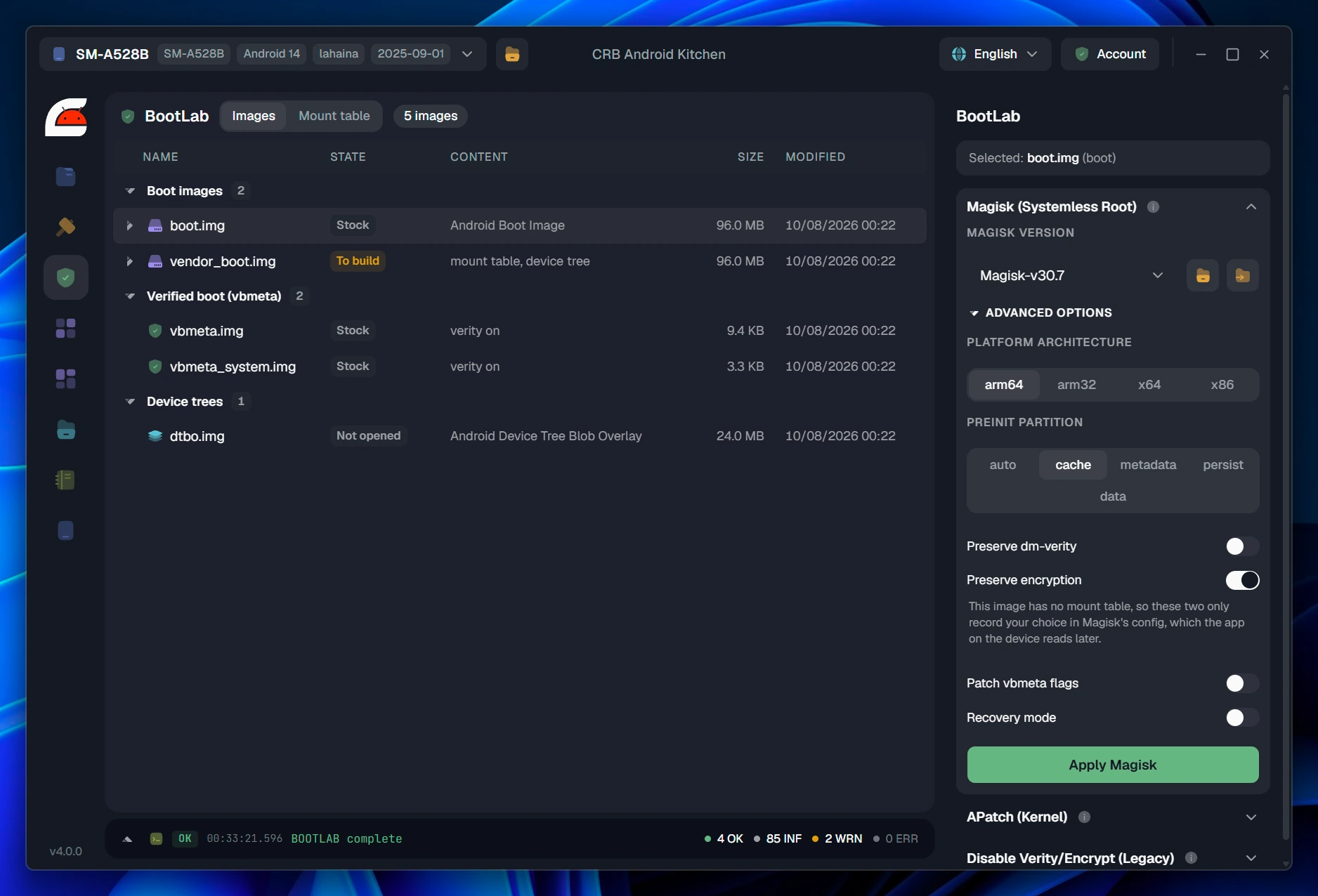
The Magisk panel with platform architecture, preinit partition choices, preserve dm-verity and preserve encryption toggles.
Magisk, with the awkward parts pre-answered. Architecture detected from the image, preinit partition suggested per manufacturer, and a note when a toggle only records a preference rather than changing the image.
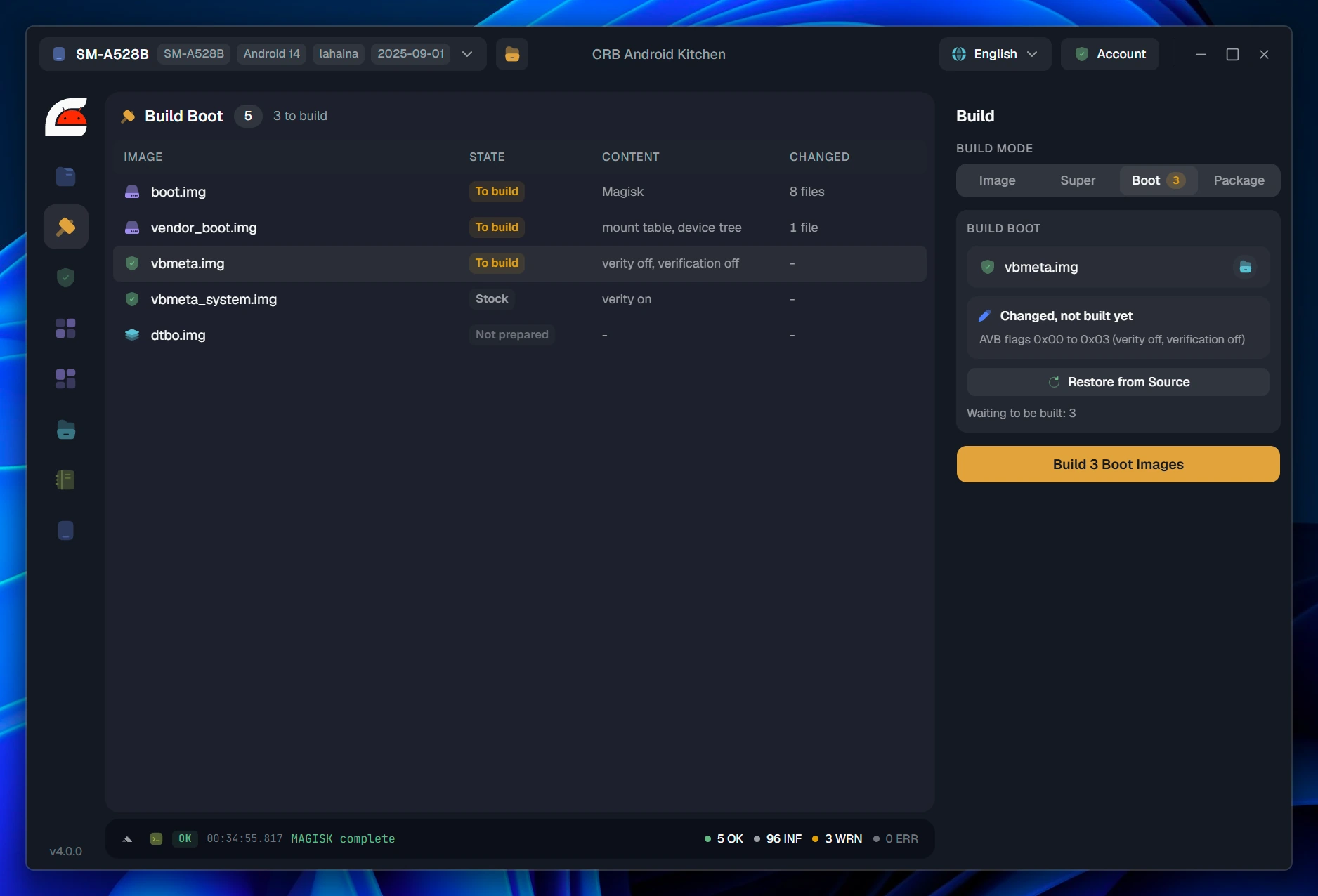
Build Boot listing boot.img with Magisk and 8 changed files, vendor_boot.img with a mount table change, and vbmeta.img with verity and verification off.
Nothing is written until you build. Each image says what changed in it and how many files, and the panel warns that a rebuilt image no longer matches the digest recorded in vbmeta.
Systemless root
Magisk is applied into the working area from your own local store of APKs, with the target image checked first: patching vendor_boot is refused with an explanation, and a device that keeps its ramdisk in init_boot is pointed at the right image.
Kernel patching
APatch is applied to the kernel in the working area with your SuperKey. Kernels carrying vendor protections that defeat static patching are rejected up front, because the patched image would not boot.
Legacy devices
On phones from before vbmeta, dm-verity and forced encryption live in the ramdisk mount table and in the device tree beside it. Both can be stripped in one pass, or flag by flag from the table.
Device tree
The blob is offered as JSON when it can be compiled back to the same bytes. When it cannot, crb says so rather than silently rewriting the whole tree behind your back.
Kernel facts
Version, filesystems, f2fs and EROFS compression support, page size and protection features are read out of the kernel configuration carried in the boot image, and drive the warnings shown on the build screen.

Apps

A debloater that reads the ROM instead of a list

crb ships no list of packages that are safe to remove, because such a list is a statement about a generic phone and you are not holding one. Every app in the firmware is read: its manifest, the libraries it provides, the apps that need it, the overlays that dress it, the permissions other apps ask for, and the configuration files that name it. The verdict comes with the reasons that produced it.
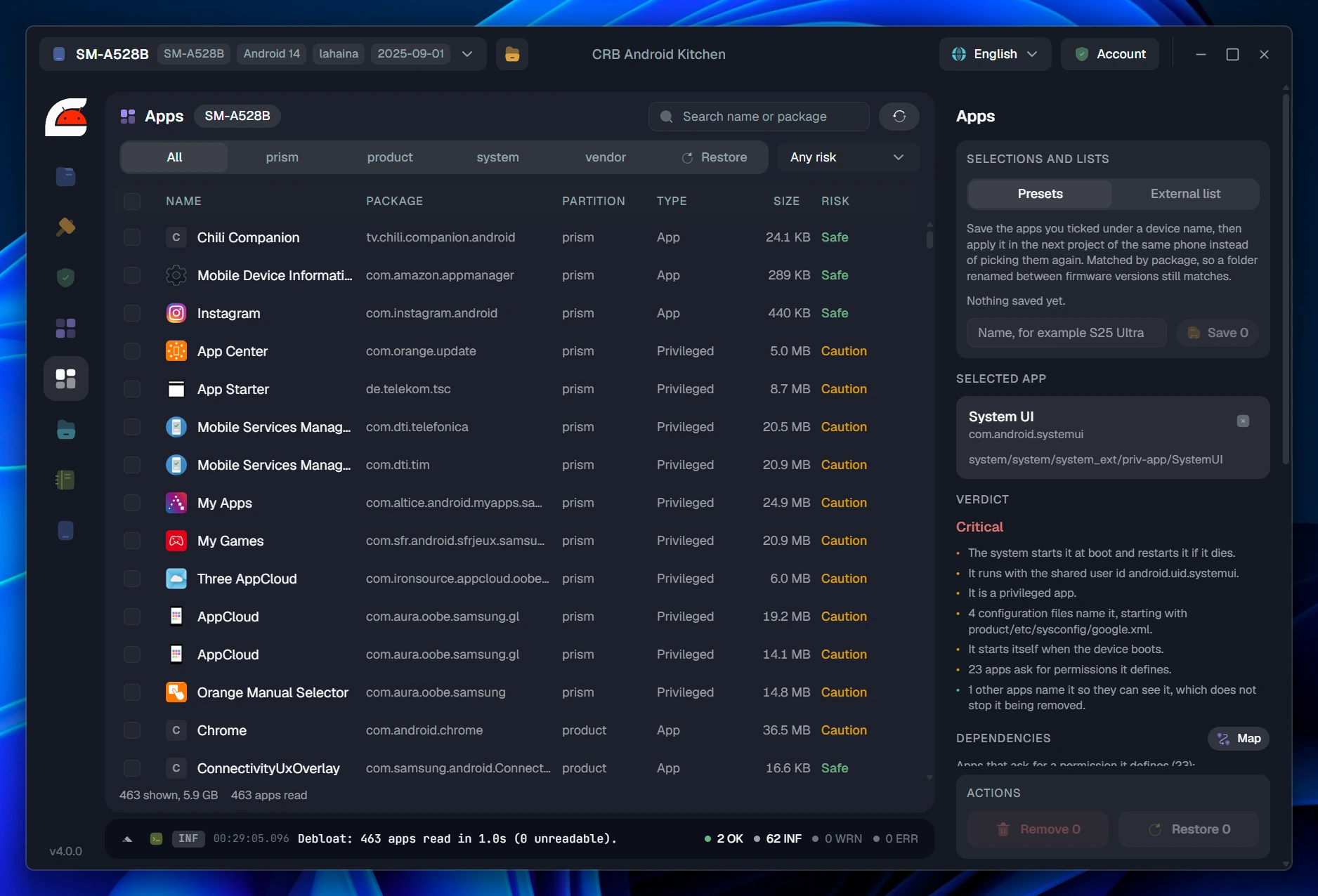
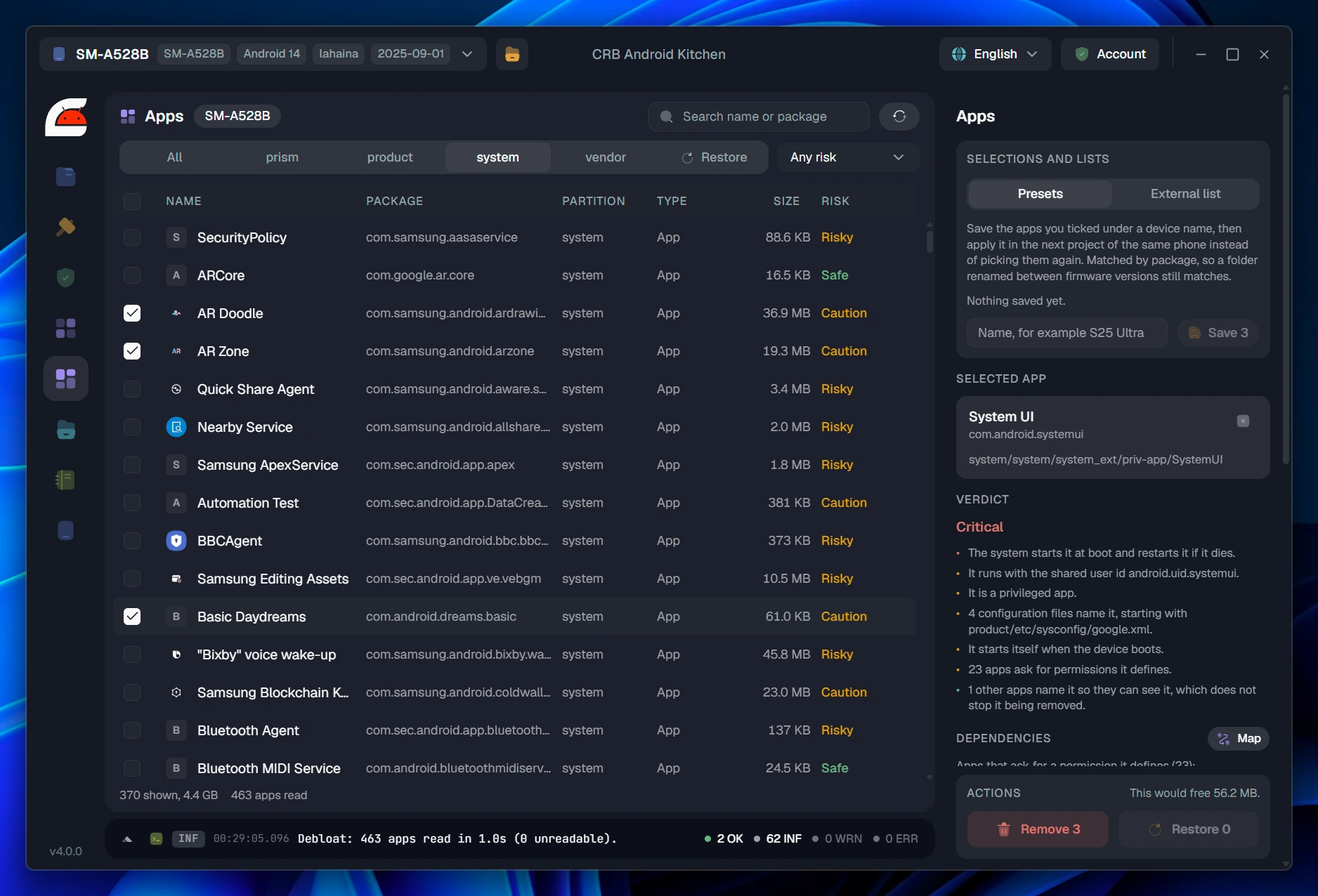
463 apps read from a ROM, with package, partition, type, size and a risk verdict per row.
463 apps read in one second. Filter by partition, by risk or by name; the panel on the right explains the selected one.
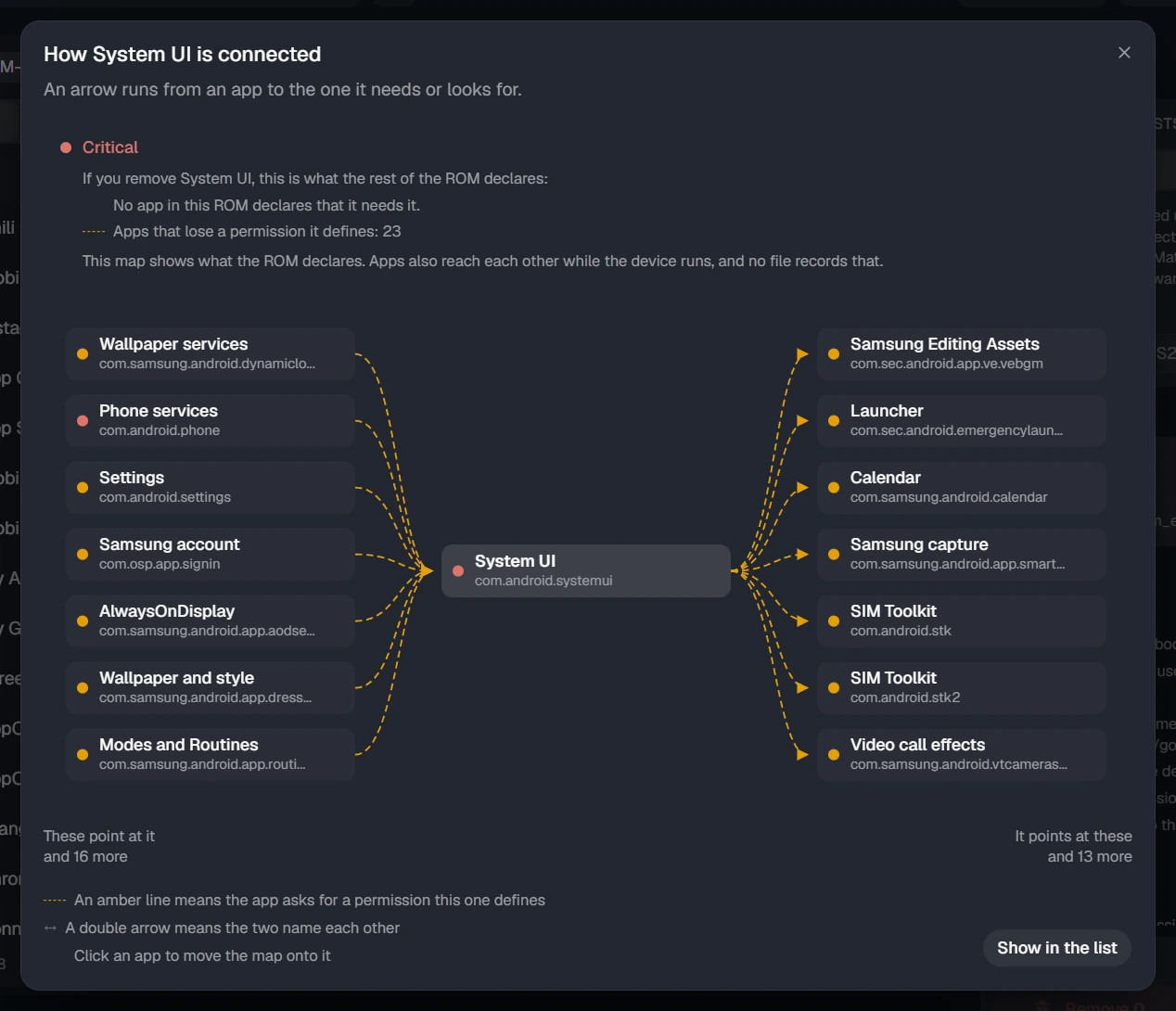
A map of what System UI is connected to: apps that point at it on the left, apps it points at on the right, with the line colour giving the kind of relationship.
What breaks if this goes. Arrows run from an app to the one it needs, and the colour says whether the other app simply stops starting, loses a permission, or only loses a skin.
Three apps ticked in the system partition, with the panel reporting that removing them would free 56.2 MB.
Before anything moves, the panel says what it costs and what it gains: how much the selection would free, and the worst verdict in it. The confirmation repeats both.
  • Removal is a move, not a delete. Apps go into the project backup and come back from the same screen, which is why the operation is safe to try.
  • A community list can be imported and its opinion appears beside the computed verdict, never mixed into it. You always know which of the two is talking.
  • Selections are saved per device and applied to the next project for the same phone, matched by package name so a folder renamed between firmware versions still matches.
  • The map is honest about its limits: it shows what the ROM declares. Apps also reach each other while the device runs, and no file in the firmware records that.

Patching

Look before you change, and keep the original

The framework patcher, the deodexer and the Bluetooth library patcher all work the same way: a dry run that reports exactly what it found and would do, then an apply that keeps a copy of everything it replaced.

The dry run is not a preview, it is the point

Every one of these tools will tell you what it would do and then stop. The report names each file it examined and the decision it reached for it, and the run ends on the line that matters: (dry-run: no files were modified). Nothing about the project has changed, and you know whether the operation is worth starting.

The apply keeps a copy of everything it replaces, and then checks its own work: dex checksums, signatures, and the methods it touched. Backups are listed in the same panel and restore from there, so undoing is one click and not a re-extraction.
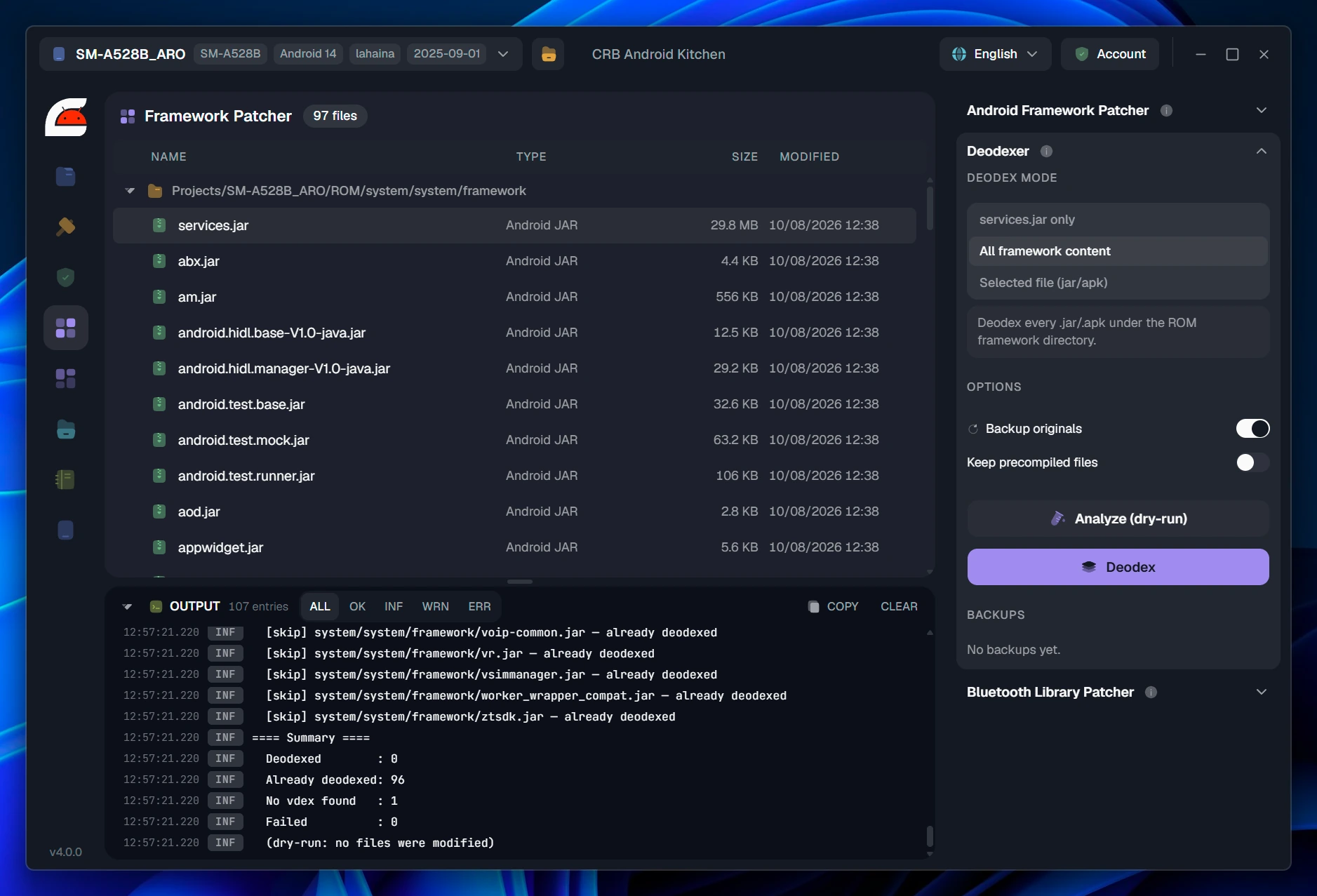
The deodexer dry run over the whole framework directory: 97 files examined, 96 already deodexed, one with no vdex, none failed, and no file modified.
A dry run over a whole framework directory. 97 jars examined, 96 already deodexed and skipped by name, one with no vdex to work from, none failed. The summary is the answer: there is nothing here to do, and it cost you nothing to find out.
Framework patcher
Targeted patches to services.jar, each one a switch you set yourself and each one named in the log with the number of sites it found. Weakening signature verification is one of them: it is off by default, and the toggle says what it costs. Every patched dex is verified after the fact and the original jar is kept.
Deodexer
Converts odexed system jars and APKs back to classes.dex in place, for a single file, for services.jar alone, or for the whole framework directory. Originals are backed up, and the stale precompiled artefacts are removed by default because they would stop the deodexed code from loading.
Bluetooth library patcher
Keeps Bluetooth pairings across reboots on a rooted Samsung. The guard is located by the library's own debug strings rather than by a byte signature, so it does not need a new pattern for every firmware release.

Packaging

Whatever shape the phone expects

Built images are one thing; a package a device will take is another. crb wraps them the way each ecosystem wants, and the log records the archive it produced and the checksum it computed.
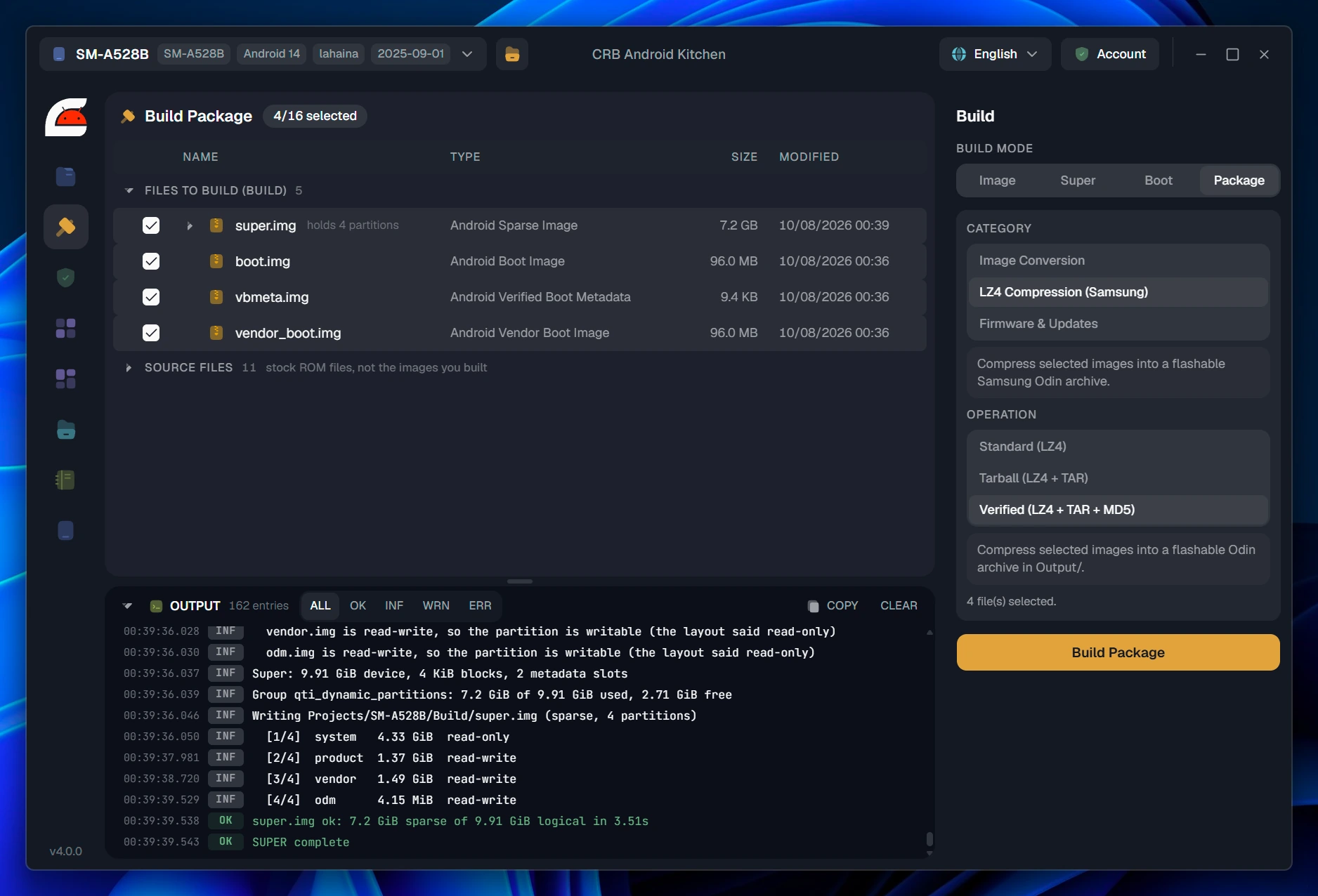
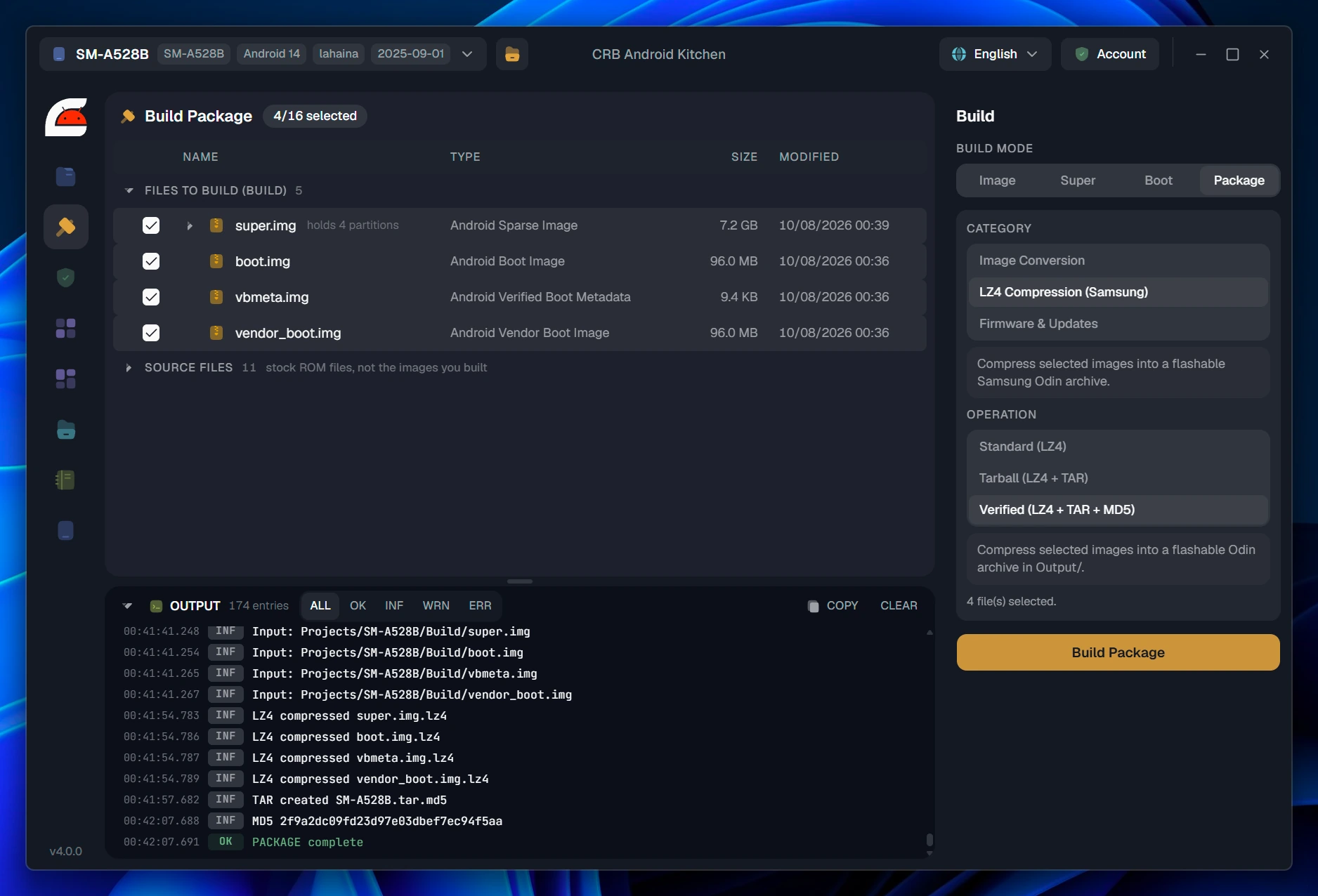
The package builder with the four built images selected and the Samsung LZ4 category set to verified, meaning LZ4 plus TAR plus MD5.
Pick the images, pick the shape. Built images and stock ones are listed separately, so you always know which copy is going in.
The packaging log: each image compressed to lz4, the tar.md5 archive created, and the MD5 checksum printed.
A flashable Odin archive, with each image compressed, the tar built, and the MD5 appended and printed.

Samsung Odin

LZ4 alone, LZ4 in a tar, or the verified form with the MD5 appended, which is what Odin and the phone expect.

OTA payload

A signed payload.bin built from the selected partition images, or the same payload wrapped in a flashable update zip with its metadata.

Legacy and vendor

Raw and Android sparse conversion in place, transfer list sets as NEW.DAT or Brotli compressed, and Allwinner and Amlogic repacking from the project configuration.


Device

The phone answers for itself

Connect a device over USB and crb asks it what it is and what it can do, then holds the answers next to the images in your project. Writing is deliberate: you tick what goes, you see where each file lands, and the confirmation states the consequence rather than asking whether you are sure.

Every image mapped to a destination

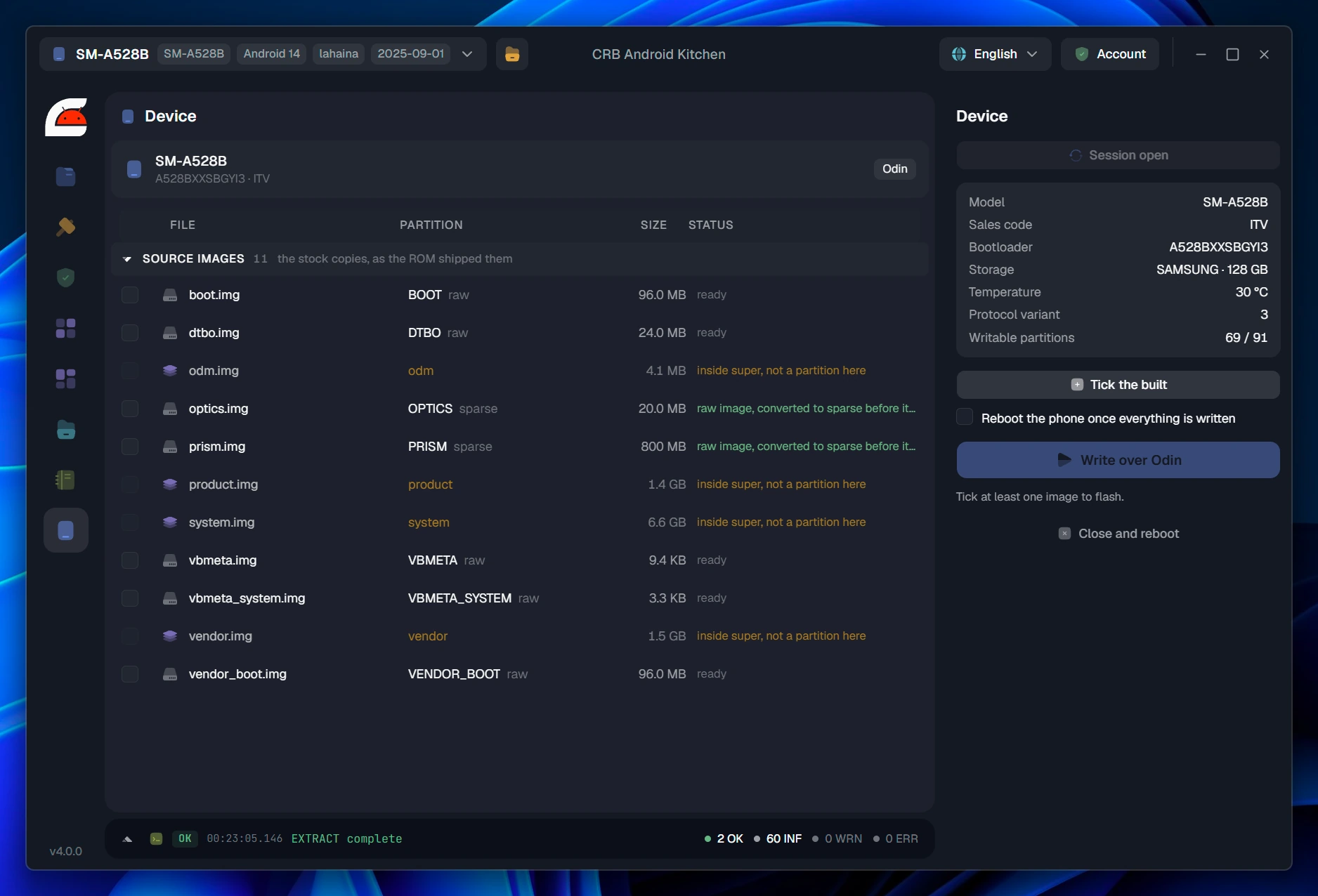
Each file in the list is matched to a partition on the device and given a status. An image that is larger than the partition it targets says so. An image that lives inside super on this phone says there is no partition of that name to write it to. A raw image going to a target that expects sparse says it will be converted first.
  • Modes: Android over ADB, bootloader and fastbootd, recovery sideload, and Samsung download mode with the Odin protocol. crb can reboot the phone into the mode an operation needs and wait until it is really there.
  • Information first: partition table with sizes, slots and which one is running, super geometry, bootloader variables in full, and whether numbers were measured or assumed.
  • Refusals with reasons: a locked bootloader, a snapshot merge in flight, a device that is not the one the project came from, two files aimed at the same partition, or super ticked together with partitions it already contains.
  • Two lists it will not treat as ordinary: what holds the device's identity, the calibration and the keys written once on a factory line, is refused outright on every transport, because nothing could put it back. What holds the bootloader is refused with no override over Odin, and over fastboot it takes a confirmation that names the partition out loud.
A Galaxy A52s in download mode: model, sales code, bootloader, storage, temperature, protocol variant and writable partition count, with the project images mapped to Odin targets.
A Galaxy in download mode. The session reports the bootloader, the storage, the temperature and how many of the phone's 91 partitions it will accept a write for.
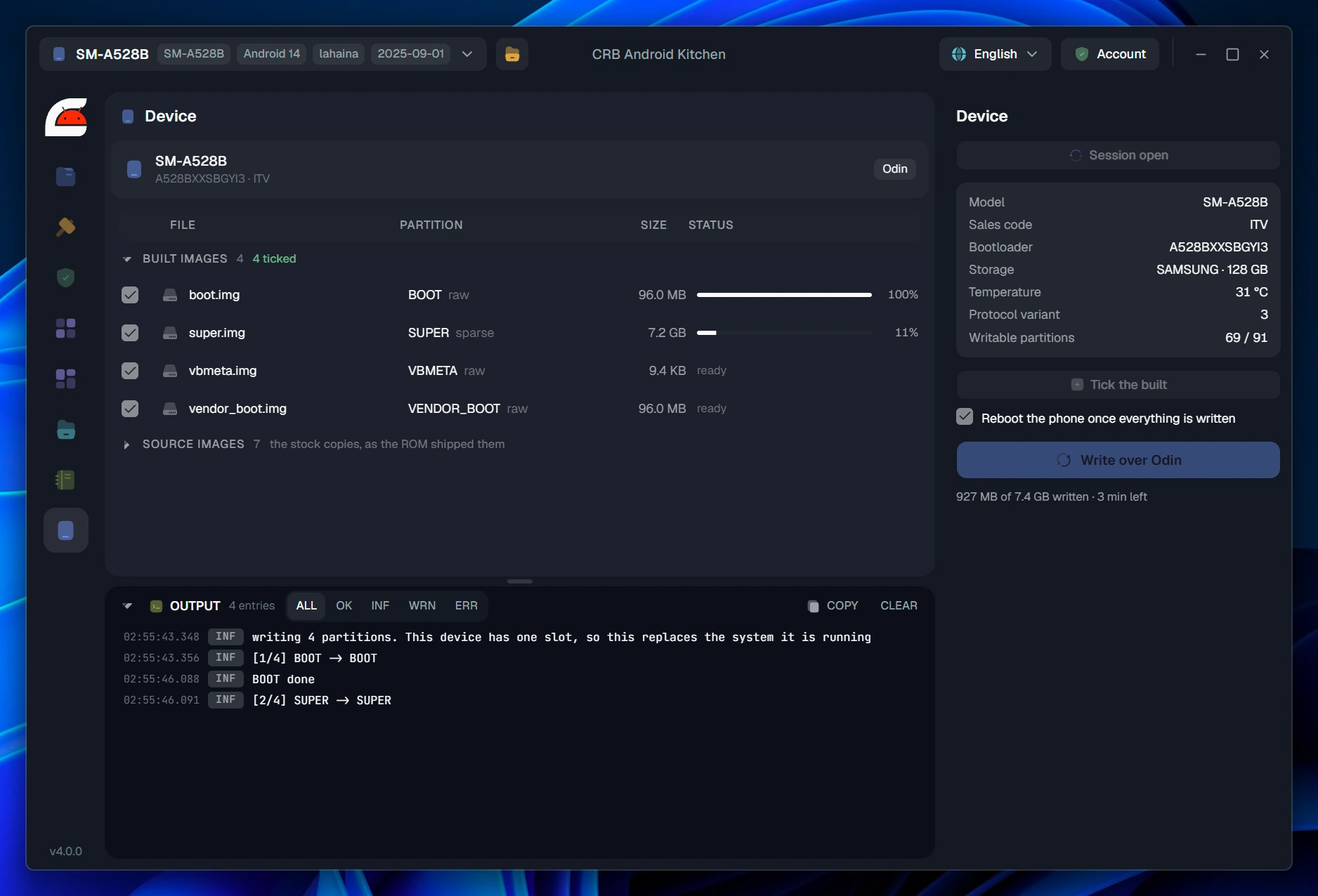
A write in progress over Odin: boot done at 100 per cent, super at 11 per cent, 927 MB of 7.4 GB written with three minutes left, and the log naming each partition as it starts.
A real write, in progress. Images you built are listed apart from the stock ones, each matched to the partition it goes to and to the format that partition expects. Every file keeps its own bar, the panel counts the whole transfer and the time left, and the log names each partition as it starts and again when it is done.

Flashing is the part crb is most careful about

Writing to a phone is presented as experimental and meant for people who already know how to bring one back. crb never writes the partitions that hold a device's identity, it asks before any partition whose loss would cost you fastboot, and it says plainly that a wrong image or an interrupted write can still leave a device that does not start. Have the stock firmware for your exact model ready before you begin.


Control

The interface is the documentation

Firmware work goes wrong in quiet ways: a flag you did not know existed, a table that no longer matches the image, a partition that fits until it does not. crb is built so that the screen you are on already tells you the thing you would otherwise have to know.

Choices explain themselves

Options that carry consequences do not get a tooltip, they get a paragraph. The verified boot panel spells out what each flag stops the phone from checking, and which choice a locked bootloader will still accept.

Everything has a way back

Restore a boot image from Source, re-extract a partition with its settings, restore a patched jar from its backup, put removed apps back. The undo is on the screen that did the change.

The log is the receipt

Every operation writes what it did with numbers: files scanned, bytes saved, rows changed, checksums computed, how long the verify took. Filter it by level, copy it whole, or turn on a debug trace when something needs reporting.

Dry runs before real ones

The framework patcher and the deodexer analyse first and report what they found. Auto Size measures the tree before it writes. Metadata coverage checks a partition without touching it.

State is visible, not implied

Every image says whether it is stock, changed but not built, or built. Every partition says whether the build settings are the original ones or your overrides. You never have to remember what you did an hour ago.

Long jobs stay yours

Extraction, building and packing report progress and can be cancelled. Large images stream instead of being loaded whole, so a 7 GB partition does not need 7 GB of memory.
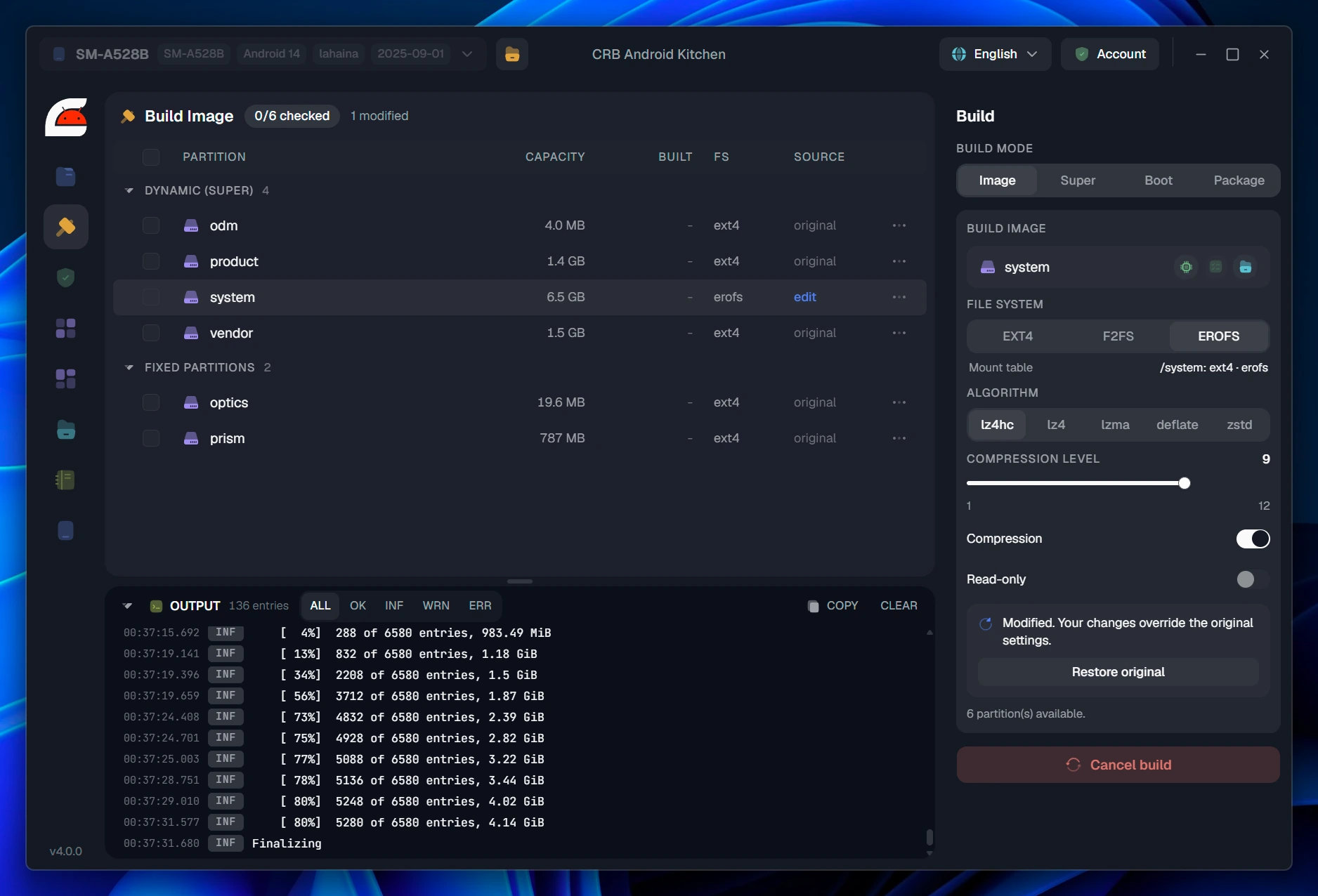
A build in progress, with per cent progress in the log and the primary button turned into Cancel build.
A running job replaces its own button. The log counts entries written and the share of the tree done, and the action that started it becomes the one that stops it.

Formats

Files are identified by what they are

crb reads a file's header to decide what it is holding. An extension is a convention and firmware breaks it all the time: an .img that is really a vendor container, an archive with the wrong suffix, an image that is sparse when the name says otherwise.

Filesystem images

ext4f2fsEROFS Android sparseraw

Android partitions

bootinit_bootvendor_boot recoveryvbmetavbmeta_system superdtbodtb device treeSELinux policyfs_config

Archives and compression

ZIP7zRARTAR gzipxzlzmalz4 Brotlibzip2zstdlzo

Update and transfer payloads

payload.binNEW.DATNEW.DAT.br transfer.listpatch.datupdate zip

Vendor layouts

Samsung Odin AP / BL / CP / CSCSamsung tar.md5 OFP-derived (Oppo, realme, OnePlus)ASUS raw AllwinnerAmlogic

Application formats

APKJARdex vdex / odexresources.arscAndroidManifest

This is not a compatibility list. The vendor layouts above are named because they arrange or hide their contents in a way that belongs to one manufacturer and would otherwise be unreadable. Everything else is simply read for what it is: a Xiaomi update carrying a payload.bin, a recovery zip, a folder of loose images meant for fastboot, a plain archive of sparse partitions. They all go through the same detection, whoever shipped the phone. Oppo, realme and OnePlus firmware is handled from the unpacked package rather than from the .ofp container, including the regional metadata variants and the pointer files that stand in for the real images.


Requirements

What you need to run it

Operating system
Windows 10 or 11 on x64 or ARM64, or a 64-bit Linux desktop. macOS is in progress.
Disk
Room for the firmware, its unpacked contents and what you build. A modern flagship ROM wants 60 GB or more free.
Memory
8 GB is enough. Extraction and building stream through a bounded window rather than loading whole images.
For device work
A USB cable and USB debugging. Windows wants a driver for bootloader, fastbootd and download mode, Debian and Ubuntu the usual udev rules.
Licence
Paid, with no trial version. One account, signed in once, and offline use lasts a couple of days before it revalidates.

WSL is not required, and neither is a distribution

Every filesystem crb reads and writes, every image it packs and every patch it applies is done by the application itself. There is nothing to enable, no distribution to install, no virtual machine to keep running, and no Linux command line hiding behind the interface. If you already have WSL for other reasons, crb neither uses it nor cares.

The whole interface, in 26 languages

Not only the menus: the explanations, the warnings and the log labels are translated too, because on this kind of screen the explanation is the part that matters. Switch language from the title bar at any time.

Open your first ROM

crb Android Kitchen 4 runs on Windows 10 and 11 and on 64-bit Linux. Install it, create a project, point it at a firmware package, and you will be looking at the files inside it in a couple of minutes.